Key Takeaways
VirtualDJ is one of the most widely used DJ apps and can broadcast a live mix straight to your internet radio station.
VirtualDJ streams over the Icecast protocol, connecting to your RadioCult server with the details on your dashboard.
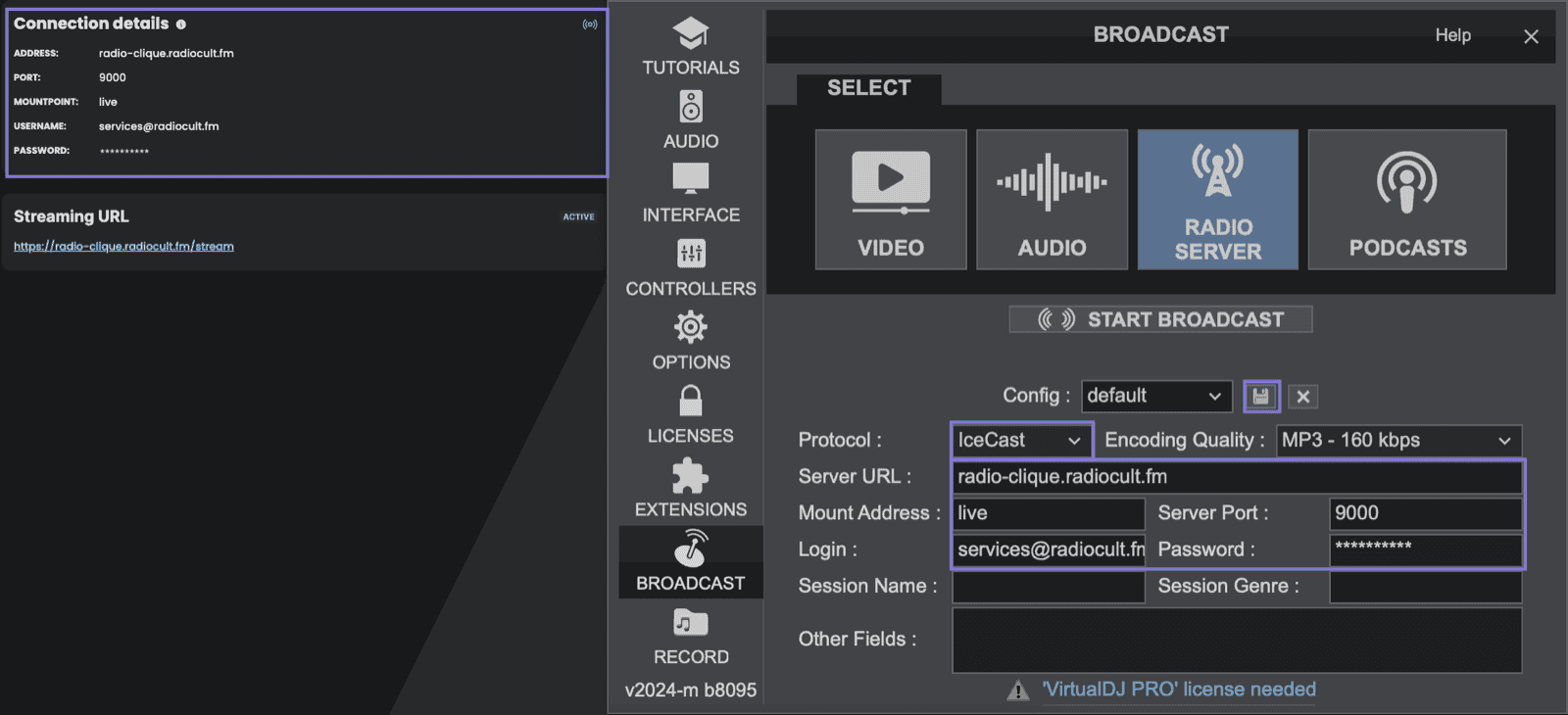
Map your RadioCult Address, Port, Mountpoint, Username, and Password into VirtualDJ's Server URL, Server Port, Mount Address, Login, and Password fields.
Start streaming from the Broadcast settings with the "Start Broadcast" button.
VirtualDJ has built-in broadcasting, so you can put a live DJ set straight onto your internet radio station without any extra software. This guide shows you how to live stream with VirtualDJ by connecting it to your RadioCult streaming server.
What is VirtualDJ?
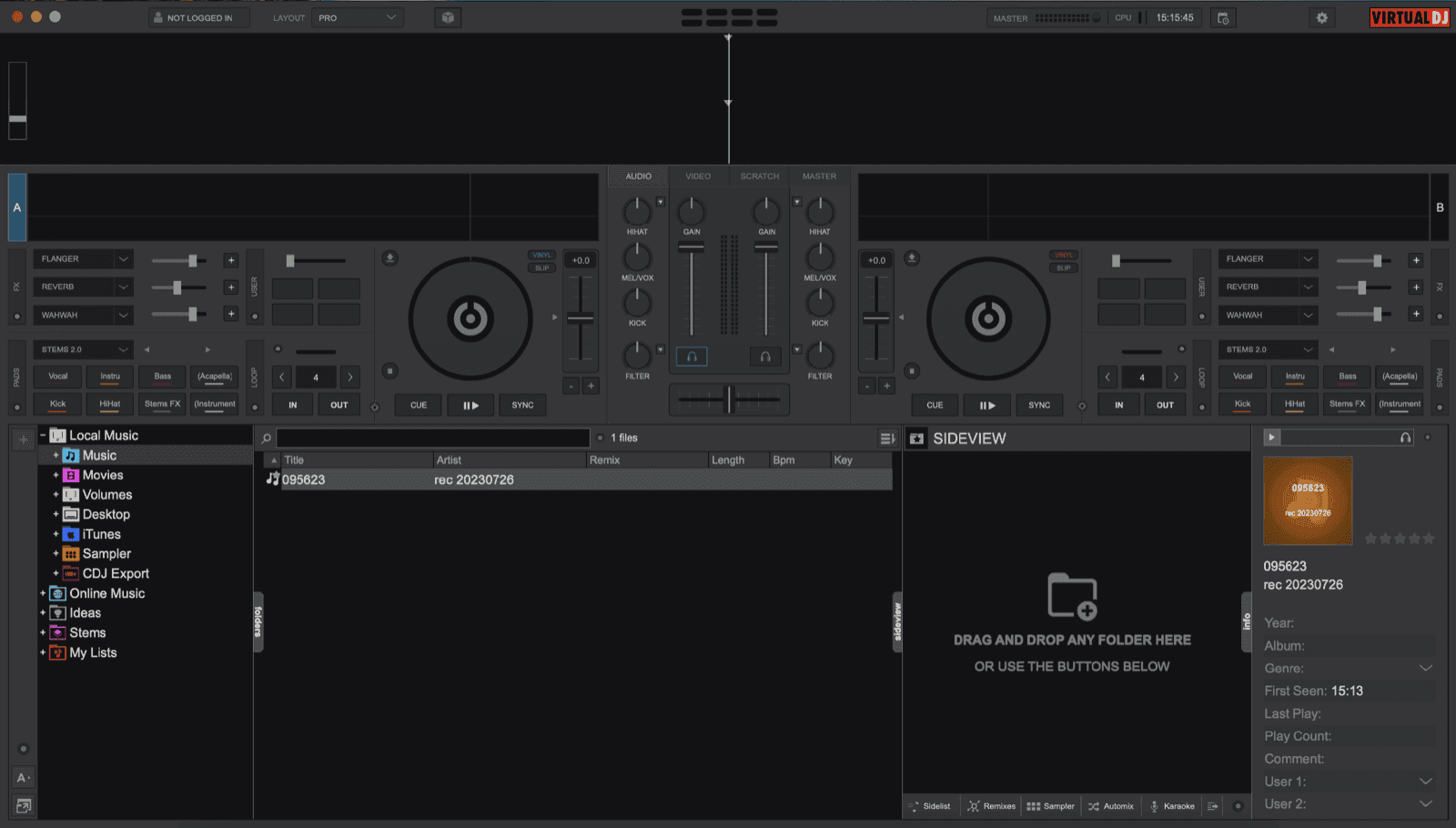
VirtualDJ is one of the most widely used DJ applications, available on Windows and macOS. Alongside its decks, effects, and controller support for live mixing, it has built-in broadcasting so you can stream a set directly to a remote server without managing your own infrastructure. Most features require a paid subscription.
Once you are on air, RadioCult's scheduling and automation can keep your station running between your live VirtualDJ shows.
Connecting VirtualDJ to your RadioCult station
Your username is the same as your RadioCult account login (your email address), and your password is a unique streaming password shown in the Connection details panel. This streaming password is separate from your account login password.
First, log in to RadioCult and keep the Dashboard open so you can copy the values from the Connection details panel.
Then, in VirtualDJ:
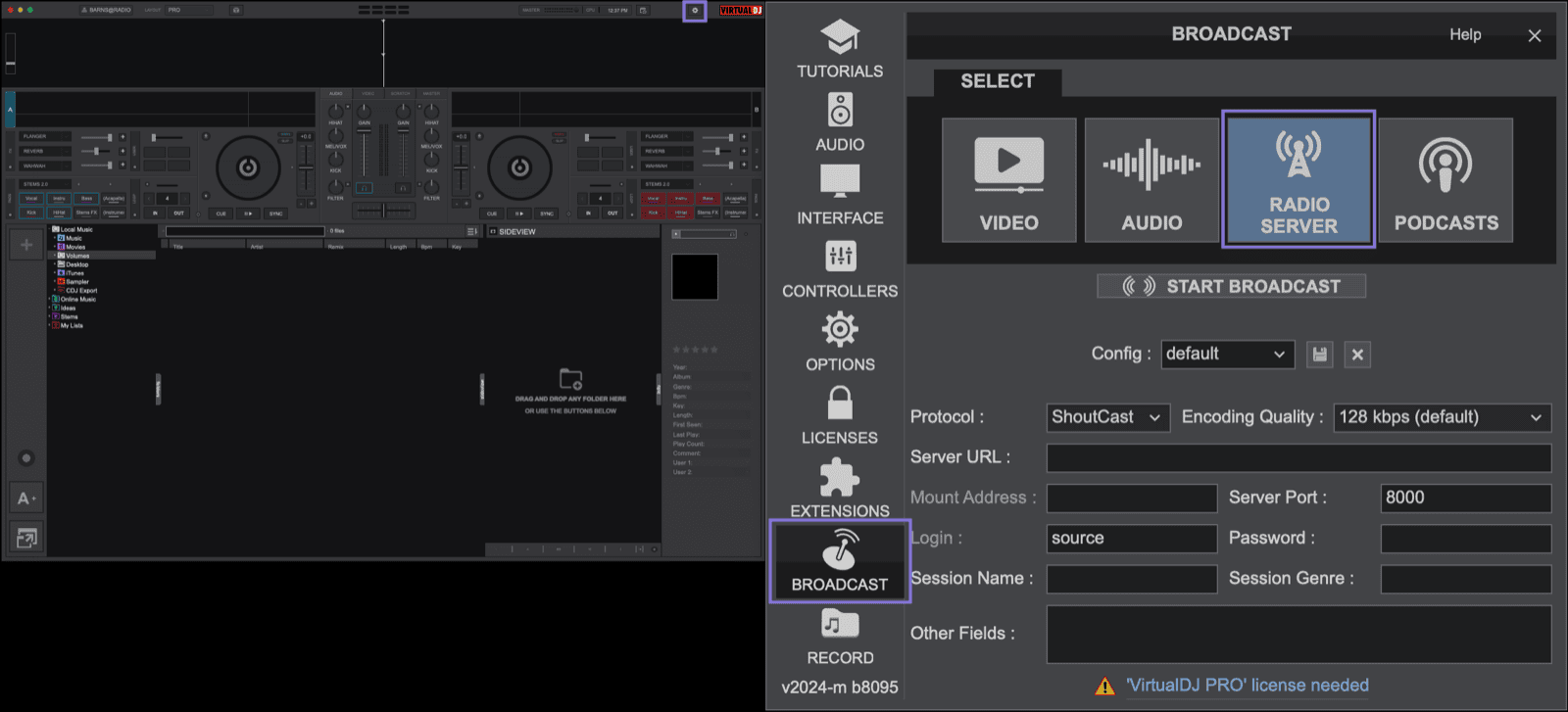
- Click the Settings icon in the top-right corner.
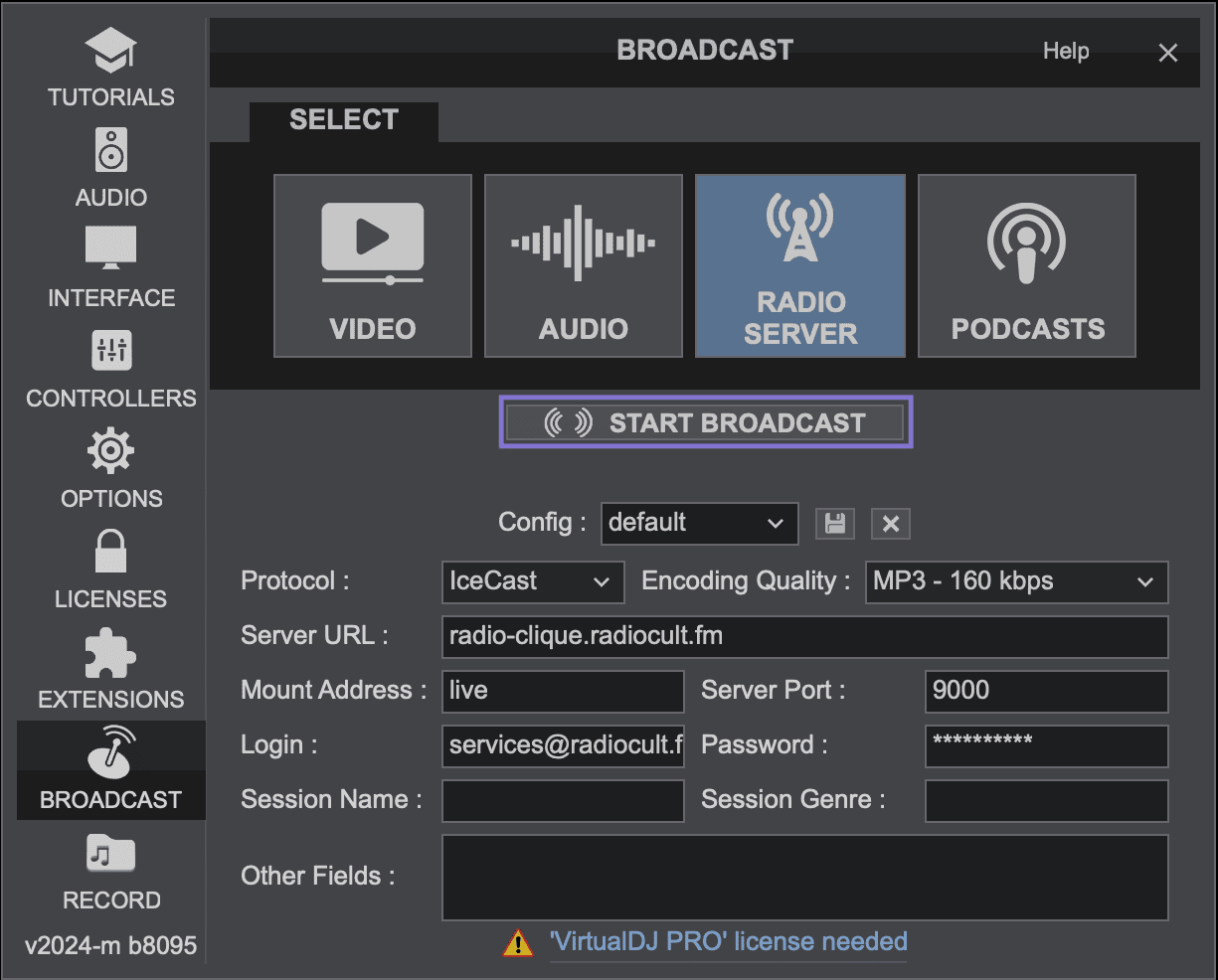
- Select the Broadcast icon in the left menu, then choose Radio Server from the Select dropdown.
- Set the Protocol to IceCast.
- Enter your RadioCult connection details into the matching VirtualDJ fields:
- Server URL: your RadioCult Address
- Server Port: your Port
- Mount Address: your Mountpoint
- Login: your Username
- Password: your Password
- Click the Save icon to confirm.
Going live
To start broadcasting, return to the Broadcast settings and click Start Broadcast. Your live mix streams straight to your RadioCult station and out to your listeners. Click the button again to stop when you are done.
That is everything you need to stream a VirtualDJ set live. From here you can reach more people with unlimited listeners or see what's included on RadioCult's plans.