Key Takeaways
Traktor is Native Instruments' professional DJ software, and it can broadcast a live mix to your internet radio station.
Enter your RadioCult Address, Port, and Mount Path in Traktor's Broadcasting server settings.
Traktor's password field uses a combined "username|password" format, separated by a vertical bar (for example user@radiocult.fm|abcd1234).
Go live from the Audio Recorder section by clicking the broadcast icon, which turns solid blue when connected.
Traktor's built-in broadcasting lets you stream a live DJ set straight to your internet radio station, once you know the combined username|password format it expects. This guide shows you how to live stream with Traktor by connecting it to your RadioCult streaming server.
What is Traktor?
Traktor is paid DJ software developed by Native Instruments and is widely used alongside the likes of Serato. As well as its decks, effects, and controller support, it includes built-in broadcasting so you can stream your mix to a remote server, letting you broadcast online without managing your own server.
Connecting Traktor to your RadioCult station
Traktor does not send a separate username to RadioCult, so you place your username in the Password field instead. There is no separate username field to fill in.
In the Password field, combine your username and streaming password with a vertical bar, in the format username|password. Your username is your RadioCult account login (your email address), and your streaming password is the unique password shown in the Connection details panel, which is separate from your account login password.
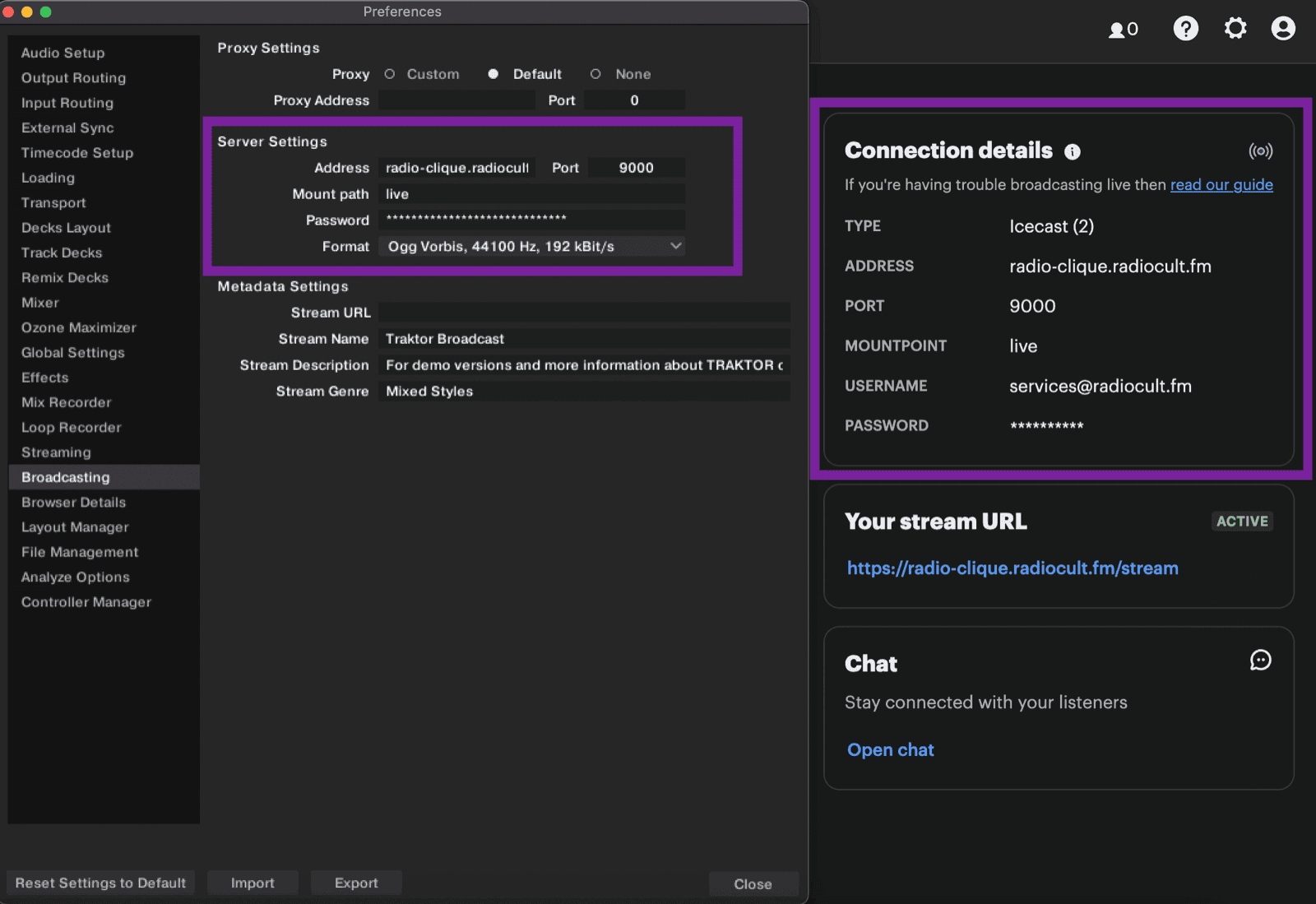
First, log in to RadioCult and stay on the Dashboard so you can copy the values from the Connection details panel. Then, in Traktor:
- Open the Settings window and select Broadcasting in the left menu.
- Leave the Proxy Settings unchanged, and enter your RadioCult details into the Server Settings:
- Address: your RadioCult Address
- Port: your Port
- Mount Path: your Mountpoint
- Password: your username and password combined with a vertical bar, in the format
username|password(for exampleuser@radiocult.fm|abcd1234)
- Choose a stream Format with a 44100 Hz sample rate that matches your RadioCult stream's bitrate. Note that Traktor supports up to 192 kbps.
- Optionally set the stream URL, name, description, and genre, then click Close to save.
Going live
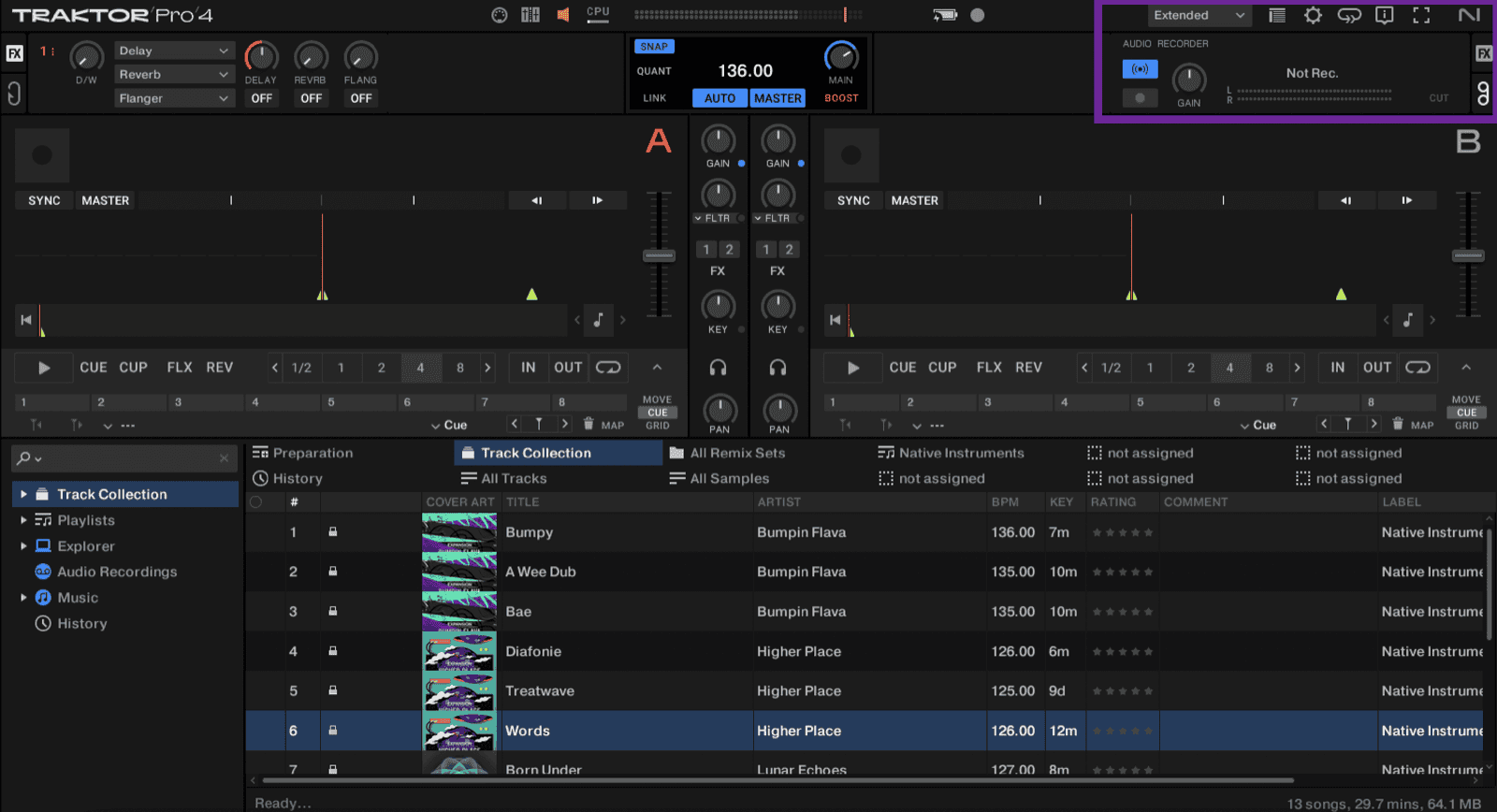
Switch to the Mixer or Extended view and click the recording icon beneath the FX to reveal the Audio Recorder section. Click the broadcast (antenna) icon: it flashes blue while connecting and stays solid blue once you are connected, and your live mix streams to your RadioCult station. Click the broadcast icon again to stop.
That is everything you need to stream a Traktor set live. From here you can grow your audience with unlimited listeners or see what's included on RadioCult's plans.