Key Takeaways
Mixxx is free, open-source DJ software for Windows, macOS, and Linux that can stream a live mix straight to your internet radio station.
Mixxx broadcasts over the Icecast 2 protocol, so it connects directly to your RadioCult server using the details on your dashboard.
You need five connection details: Host, Port, Mount, Login, and Password.
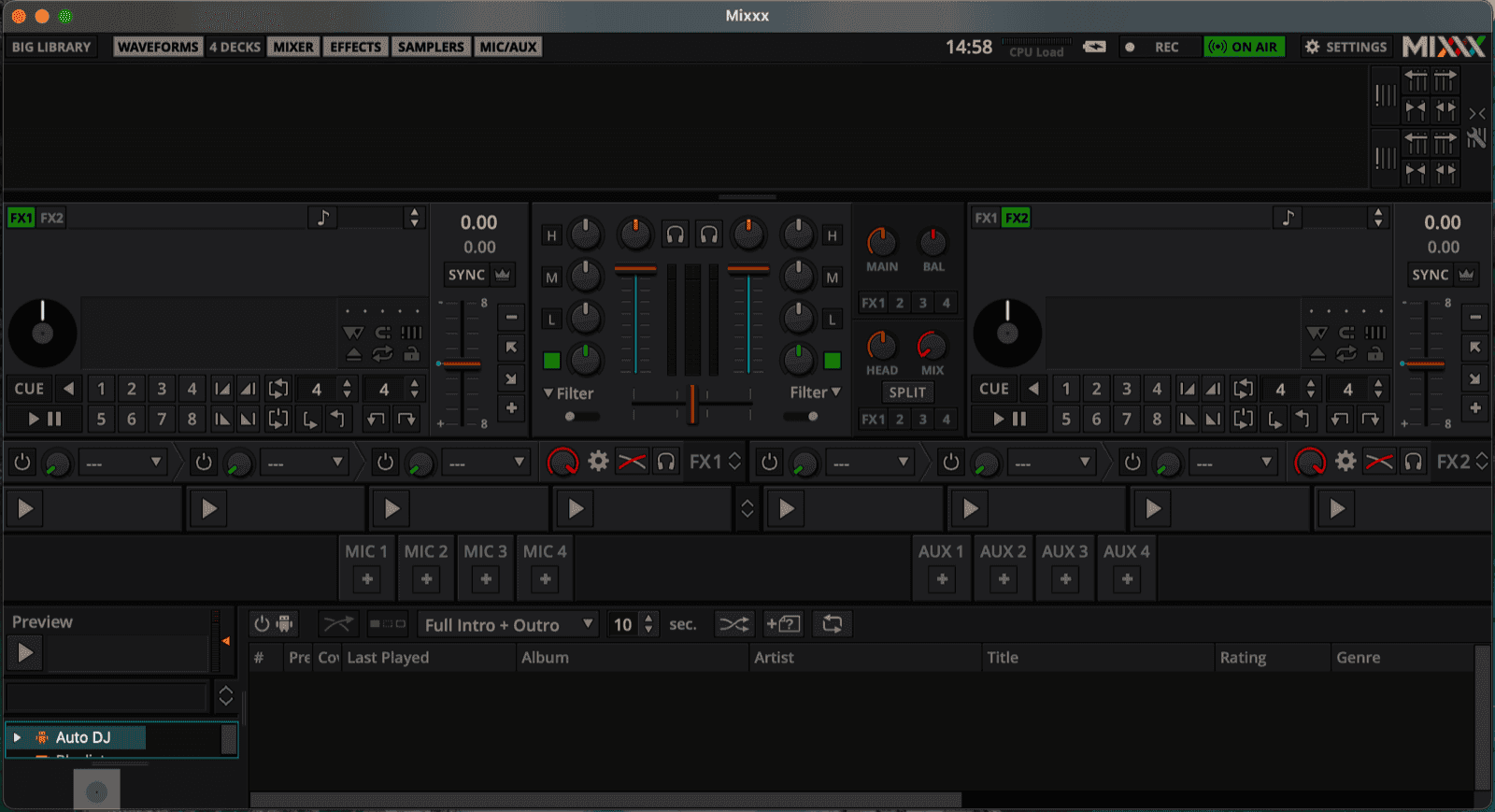
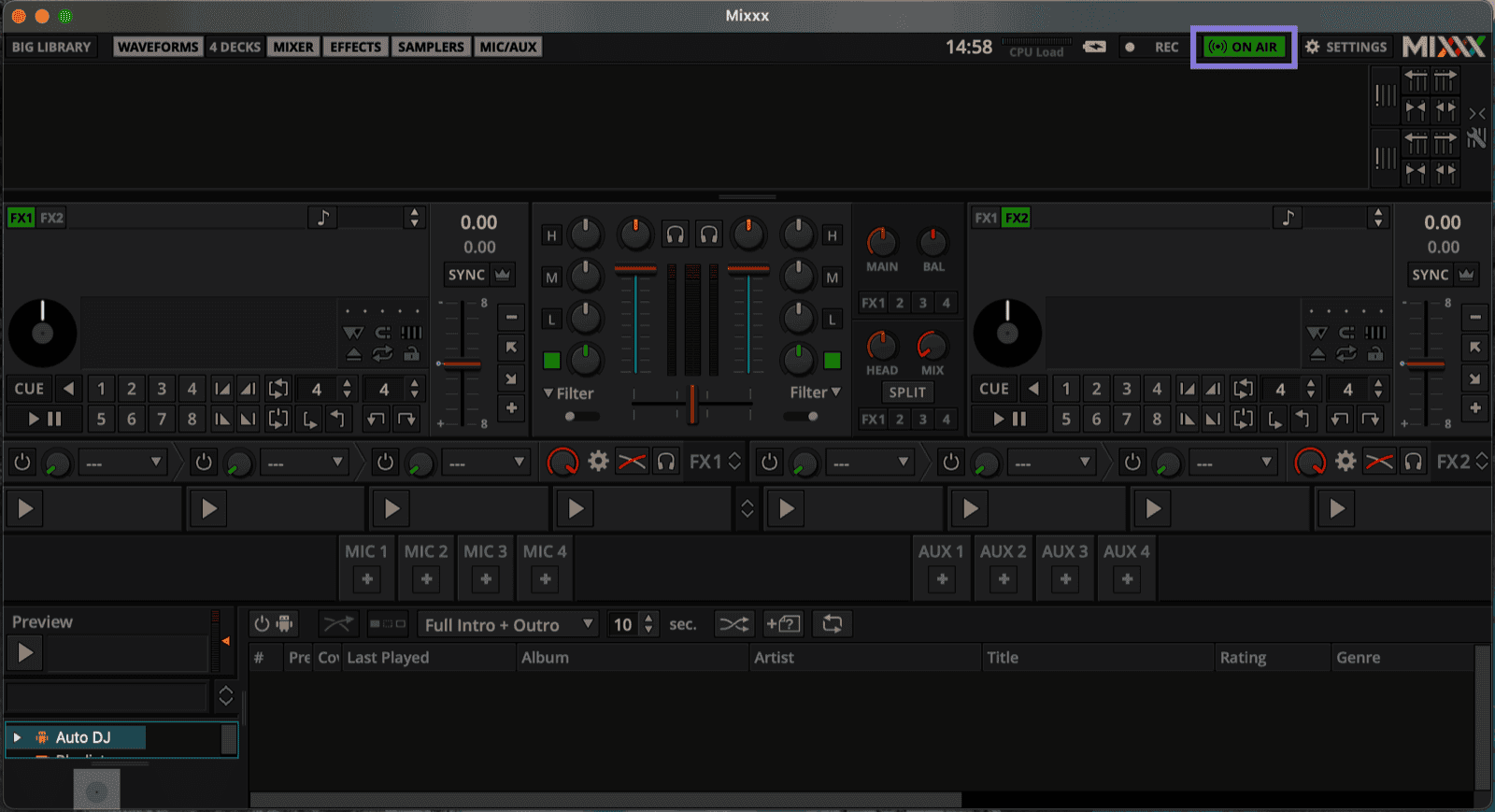
Start and stop your broadcast with the "On Air" button in the top-right of Mixxx. It turns green when you are connected.
Mixxx has live broadcasting built in, so you can stream a DJ mix to your internet radio station for free, with no extra encoder software. This guide shows you how to live stream with Mixxx by connecting it to your RadioCult streaming server, which codec and bitrate to pick, and how to fix the connection problems people hit most often.
What is Mixxx?
Mixxx is free, open-source DJ software available on Windows, macOS, and Linux. It gives you virtual decks, a mixer, beatmatching, crates and playlists, and support for most DJ controllers, so you have everything you need to perform a live set. Because live broadcasting over Icecast is built in, Mixxx is a popular no-cost way to stream a DJ mix straight to an internet radio station without any extra software, and pairing it with a managed radio platform means you avoid running your own Icecast server too. Streaming online also puts your set where listeners increasingly are: in the UK, online listening has overtaken AM/FM for the first time, making up 28% of all radio listening hours (RAJAR, Q1 2024).
Online audio is now firmly mainstream, so there is a real audience for a live mix. In the United States, 76% of people age 12 and over, an estimated 218 million people, listened to online audio in the last month (Edison Research, The Infinite Dial 2024). People are also spending more time with music than ever, an average of 20.7 hours a week (IFPI, Engaging with Music 2023). Mixxx gives you a free way to put your set in front of them.
If you would rather automate playout between live shows, you can pair Mixxx with RadioCult's scheduling and automation so your station keeps broadcasting around the clock.
RadioCult's Broadcasting accepts live encoder connections from Mixxx and gives each DJ their own slot, with automatic disconnect when the set ends. Try it free for 7 days.
Get 7 days freeConnecting Mixxx to your RadioCult station
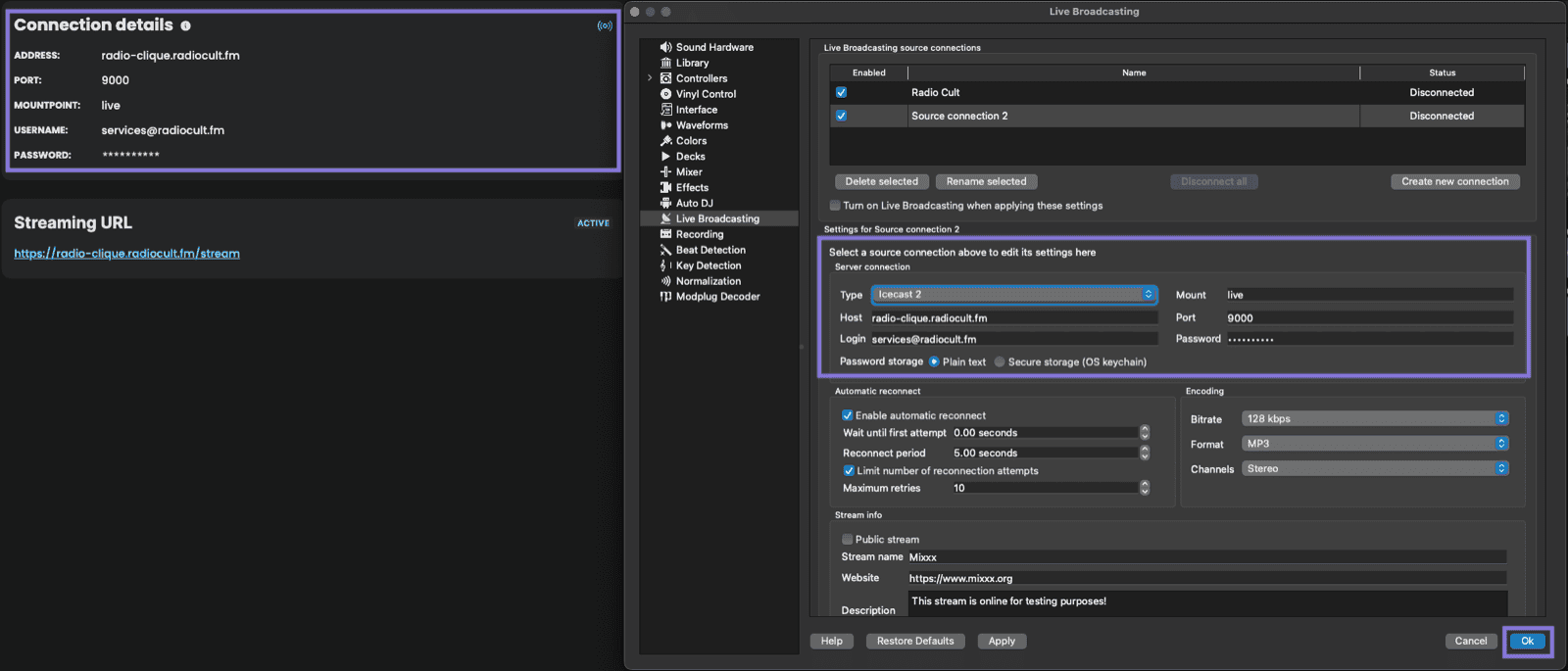
Your username is the same as your RadioCult account login (your email address), and your password is a unique streaming password shown in the Connection details panel. This streaming password is separate from your account login password.
First, log in to RadioCult and keep the Dashboard open so you can copy the values from the Connection details panel.
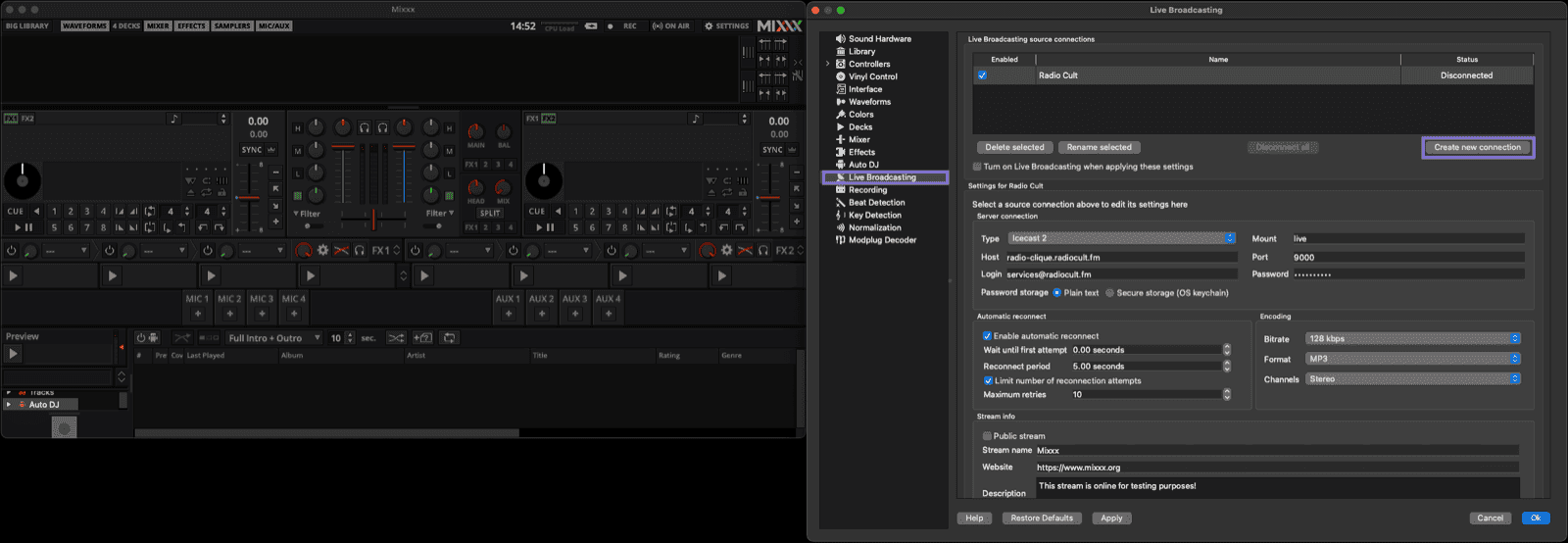
Then open your broadcasting settings in Mixxx:
- macOS: click Mixxx in the top menu bar, then Preferences.
- Windows and Linux: open the Options menu, then Preferences.
Next:
- Select Live Broadcasting from the left-hand menu.
- Click Create new connection.
- Choose Icecast 2 from the Type dropdown.
- Enter the following values from your RadioCult dashboard, using the Copy button beside each one:
- Host (your server address, entered as a hostname or IP with no
http://) - Port
- Mount (your mountpoint, for example
/live) - Login (your username)
- Password
- Host (your server address, entered as a hostname or IP with no
- Make sure the connection is enabled, then click OK.
Choosing your codec and bitrate
In the same Live Broadcasting panel, scroll to Encoding. Mixxx can stream to Icecast in MP3 or Ogg Vorbis. MP3 is the safest choice because every browser and mobile player can decode it, and RadioCult accepts MP3 streams up to 320kbps.
For bitrate, 128kbps is a reliable starting point that sounds clean and holds up on patchy connections. If your upload is stable and you want more headroom for a music-heavy mix, step up to 192kbps or 320kbps. Higher bitrates need more consistent upload bandwidth, so if the stream drops or stutters, come back down a notch.
Going live
To start broadcasting, click the On Air button in the top-right corner of Mixxx, or use Options ▸ Enable Live Broadcasting. It turns green once you are connected to your RadioCult server, and your live mix goes straight out to your listeners. Click On Air again to disconnect when you have finished.
A few things worth checking before your first set:
- Play your first track and confirm the level meters are moving, so you know audio is reaching the master output that Mixxx streams.
- On RadioCult, DJ access is tied to your assigned show slot, so connect during your scheduled time. If you connect outside it, or when your slot ends, the server disconnects you automatically.
- Give yourself a minute of headroom at the start so you are on air and settled before the show begins.
Fill the hours between live sets with scheduled shows, AutoDJ, and automatic fallbacks so your station never goes silent. Try RadioCult free for 7 days.
Get 7 days freeCommon issues and fixes
If the On Air button will not turn green, or turns red after a moment, work through these:
- Wrong host format. Enter the host as a plain address, with no
http://and no mount on the end. The mount goes in its own Mount field. - Blank or wrong mount. Icecast connections must have a mountpoint. Copy it exactly from your dashboard, including the leading slash.
- Login or password mismatch. Use the streaming login and streaming password from the Connection details panel, not your account password.
- Connecting outside your slot. RadioCult only accepts a live connection during your assigned show. Check the schedule if you are refused.
- Firewall or network blocking the port. Some office and campus networks block streaming ports. Try another network to rule this out.
Once you are streaming reliably, the same Mixxx setup works whether you are broadcasting from home or a venue. If you also want to go live away from your laptop, see our guide to broadcasting from a mobile phone, and if you prefer a dedicated encoder over your DJ software, compare it with BUTT. New to all of this? Start with how to start an online radio station.
That is all it takes to stream a Mixxx set live on your internet radio station. From here you can grow your audience with unlimited listeners, or start your free trial and put your first mix on air.