Key Takeaways
Internet radio software is what you use to manage, schedule, and stream your shows, covering media library management, playlist automation, and live broadcasting.
There are three broad types: encoders that push your audio to a server, broadcasting suites that add scheduling and automation, and all-in-one platforms that include the host.
Whatever software you use, it needs a streaming server to deliver audio to listeners. RadioCult is an all-in-one platform that provides that host plus scheduling, media management, and analytics.
Key hardware includes a modern PC or Mac, a quality microphone, noise-isolating headphones, and a stable internet connection of at least 3 Mbps upload.
Internet radio is more accessible than it has ever been. With a connection and a clear idea, anyone can broadcast, whether you are a bedroom DJ, a community organizer, or building a station with a team. There are no expensive licenses, no geographic limits, and the startup costs are low.
The piece that makes it all work is internet radio software. It handles the streaming, the playlist automation, and the delivery of your audio to listeners. This guide explains what that software is, the main types you will come across, how it fits with a streaming host, and how to set it up.
If you already know the basics and just want to compare specific tools, read our guide to the best internet radio software for a full comparison.
What is internet radio software?
Internet radio software is the tool you use to broadcast audio over the internet to listeners anywhere. It acts as the hub for managing, scheduling, and streaming live or pre-recorded shows, which makes it the starting point for hobbyists and established stations alike.
This software typically includes media library management, playlist automation, live broadcasting, and a connection to a streaming server. Many programs also offer analytics so you can monitor listener statistics and engagement.
By connecting to a streaming server, internet radio software encodes your audio and transmits it so listeners can tune in through web players or mobile apps. That is how creators share music, talk shows, DJ mixes, and other content with a global audience in real time.
Whether for a personal project or a growing station, creating an internet radio station with software gives you the tools to broadcast reliably.
The types of internet radio software
Not all internet radio software does the same job. It helps to think in three broad categories.
- Encoders: Lightweight tools that take your audio and push it to a streaming server. Examples include BUTT and LadioCast. They do not manage your music library or schedule anything, they just get your live audio online.
- Broadcasting suites: Fuller programs that add a media library, playlist management, scheduling, automation, and audio processing on top of the encoding. SAM Broadcaster Pro is a common example. You manage most of your station from one app.
- All-in-one platforms: Cloud platforms that include the streaming host itself, so you can run a station without managing your own server. RadioCult sits here, covering scheduling, media management, automation, and analytics in one place.
The first two run locally on your machine and still need a separate streaming host to reach listeners. The third includes that host.
Essential features of internet radio software
Most internet radio software shares a common set of features:
- Streaming: Transmits your audio so listeners around the world can tune in live.
- Media library management: Organizes and stores tracks for easy access during broadcasts.
- Automation: Schedules playlists and shows, keeping stations active 24/7 without manual intervention.
- Live broadcasting: Lets DJs and hosts go on air and interact with their audience.
- Analytics: Tracks listener statistics, giving you insight into audience behaviour and preferences.
Together these features handle station management, audience engagement, and the mechanics of getting your audio out reliably.
Where does RadioCult fit in?
RadioCult is an all-in-one platform, which means it includes the streaming host other tools rely on. You can run a fully fledged online radio station with just RadioCult. It handles playlist automation, media management, analytics, pre-record scheduling, and more.
So you don’t need extra software to get up and running. There are still times that call for it, though.
When would I want additional radio software?
There are two main use cases where you need additional software:
- When you want to live stream, or
- You have specific playlist or schedule automation goals
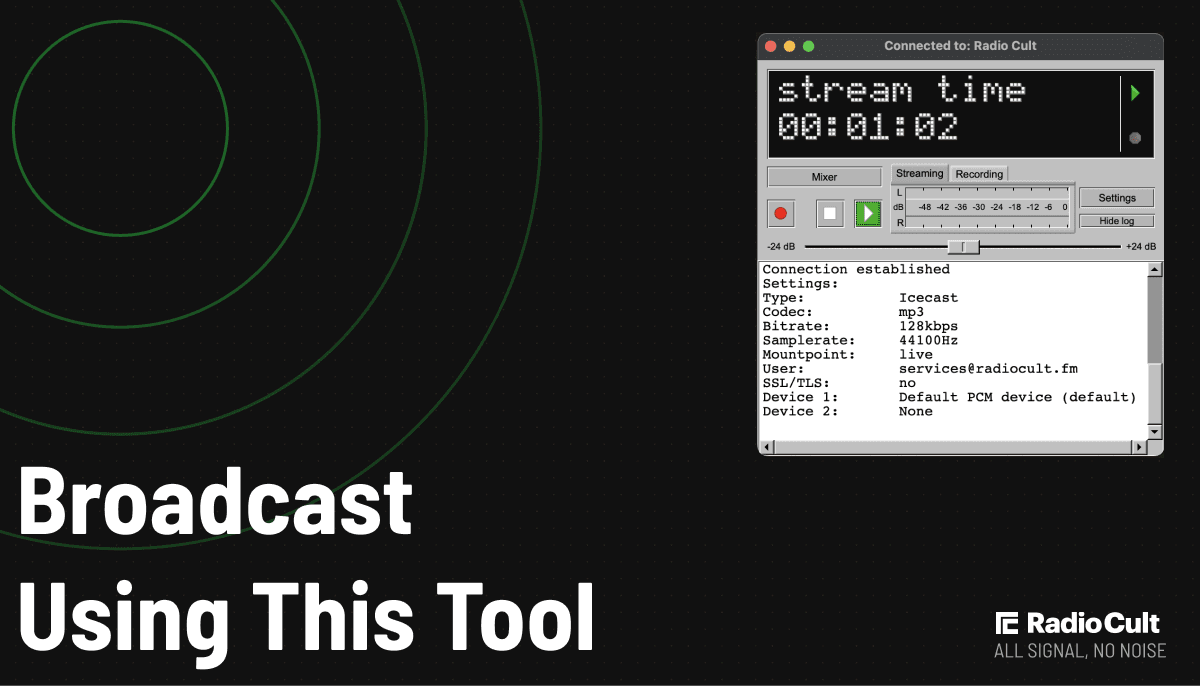
If you want to live stream, you’ll need a program to push audio from your local machine up into the RadioCult cloud. RadioCult then handles delivering that content to your listeners.
If you have specific radio automation in mind that RadioCult doesn’t cover, you may want additional software that runs locally to manipulate audio files and prepare them for play out.
This still counts as “going live”, since your local machine pushes a live audio stream into the RadioCult systems. It isn’t a traditional live show with talk segments and a host cueing up tracks by hand. The programs in this category lean more towards smart playlists and automatic file selection.
Which type of software is right for you?
The tool you reach for depends on what you want to do.
- You mainly want to go live: An encoder is enough. It pushes your live audio to your host, and you handle the rest in your platform.
- You want to run music and shows automatically: A broadcasting suite or an all-in-one platform with automation will schedule playlists and rotations for you.
- You want the least setup: An all-in-one platform includes the host, so there is nothing to stitch together.
This guide stays focused on what the software is and how to set it up. When you are ready to weigh up specific tools, our guide to the best internet radio software compares the main options for live broadcasting and 24/7 automation across Windows and Mac, with the pros and cons of each.
Setting up your internet radio software
Setting up internet radio software can seem daunting at first. With the right approach you can be streaming quickly. Below is a step-by-step guide to get you started.
Step 1: Check hardware requirements
Before diving into software setup, ensure your hardware can handle the broadcasting demands.
- Computer: A modern PC or Mac is essential. Aim for at least 8GB of RAM and a multi-core processor for smoother performance, especially if you plan to multitask.
- Microphone: A quality USB or XLR microphone will significantly improve your audio clarity. Beginners can start with affordable options like the Blue Yeti, while advanced users may prefer condenser mics.
- Headphones: Noise-isolating headphones are critical for monitoring audio without causing feedback during live broadcasts.
- Internet Connection: Stable, high-speed internet is non-negotiable. An upload speed of at least 3 Mbps ensures uninterrupted streaming. In practice the stream itself needs far less: broadcast AAC audio typically runs at 48 to 192 kbps for stereo (Fraunhofer IIS), so a 3 Mbps upload leaves ample headroom for a steady connection. Consider a wired connection for added reliability.
If you’re working on a tight budget, prioritize a good microphone and internet connection. They make the biggest difference in audio quality and streaming reliability.
Step 2: Choose your software
Pick the type of software that matches what you want to do, using the categories above as a starting point. If you mainly want to go live, an encoder will do. If you want automation, look at a broadcasting suite or an all-in-one platform.
Download your chosen software from its official website to avoid security risks. Many tools offer free trials or demos, so you can explore the features before committing. For a side-by-side look at specific tools, costs, and platforms, see our guide to the best internet radio software.
Step 3: Install and configure the software
- Download and installation: Follow the on-screen instructions to install the software. Make sure you have admin permissions to avoid installation errors.
- Server configuration: Most internet radio software needs a connection to a streaming server like Shoutcast or Icecast. Your streaming host supplies the credentials, including server URL, port number, and password. Enter these details in the software settings.
- Test configuration: Use the software’s test connection tool, if it has one, to confirm everything is set up correctly. A successful test means your broadcast will reach your audience without glitches.
Step 4: Organize your media library
Managing your media library is critical for smooth broadcasts:
- Import Audio Files: Add tracks, jingles, or pre-recorded content to the library. Most software allows bulk imports for convenience.
- Tag Metadata: Properly tag files with song titles, artist names, and album details to give listeners accurate track info.
- Create Playlists: Arrange songs into playlists that fit the theme or mood of your broadcast. For instance, a morning show might include upbeat tracks, while late-night programming can lean toward softer tunes.
A well-organized library saves time during live shows and keeps your streaming consistent.
Step 5: Set up live broadcasting
Talking to your audience in real time adds energy to your station:
- Connect Equipment: Plug in your microphone and headphones. Test audio levels to avoid distortion or low volume.
- Activate Live Mode: Enable the live broadcast feature in your software. This mode lets you mix live commentary with music or sound effects.
- Test Broadcasts: Run a private stream to check audio balance, transitions, and server connection. This helps you spot and resolve issues before going live.
Don’t forget to interact with listeners via live chat or social media for added engagement.
Step 6: Automate playlists (optional)
Automation keeps your station running smoothly when you’re not live:
- Scheduling: Use the automation tools in your software to schedule playlists, jingles, or ads. For instance, you can set a playlist during specific hours or repeat weekly.
- Crossfade Settings: Adjust crossfade options to ensure smooth transitions between tracks. This avoids dead air, which can disrupt the listening experience.
- Backup Automation: Always have a backup playlist in case of live broadcast interruptions. This ensures continuous streaming even during technical issues.
Automation tools are valuable for stations with limited staff or irregular live shows.
Step 7: Troubleshooting tips
Even good setups hit the occasional hiccup. Be ready to troubleshoot:
- No sound: Check your audio input and output settings in the software. Make sure the microphone is enabled and not muted.
- Server issues: Double-check server credentials and internet stability. Restarting your router can often resolve connectivity problems.
- Software crashes: Update your software to the latest version. If crashes persist, check system resources like RAM and CPU usage, since closing unnecessary programs can help.
Regular testing and updates are the best ways to avoid disruptions during broadcasts. If problems persist, consult user forums or contact the software’s support team.
Software across operating systems
The software you can run often depends on your operating system. Each one has its own strengths and considerations.
- Windows: Offers the widest range of internet radio software, including SAM Broadcaster Pro and RadioDJ. Check that your system meets the RAM and processing requirements, and keep updates and antivirus current.
- macOS: Stable and well suited to creative workflows. Common tools include BUTT, Mixxx, and Audio Hijack. Not every Windows tool has a Mac version, so verify compatibility before you commit. (Older guides still mention Nicecast, which has been discontinued, so look at current tools instead.)
- Linux: Works with open-source tools like Mixxx and Liquidsoap, which give you flexibility and room to customize. Although, there can be fewer options, and setup usually needs more technical know-how.
Some tools, such as Mixxx and BUTT, run across multiple operating systems, which helps if you switch devices or work with others. Always check whether your chosen software has native support for your platform. For specifics on which tools run where, our guide to the best internet radio software breaks the options down by platform.
Run your whole station with RadioCult. Start a 7-day free trial.
Get 7 days freeFAQs
What is internet radio software?
Internet radio software is the tool you use to manage, schedule, and stream audio over the internet to listeners anywhere. Depending on the tool, it can cover media library management, playlist automation, live broadcasting, and analytics, and it connects to a streaming server that delivers your audio to listeners.
Do I need a streaming server as well as software?
Usually, yes. Encoders and broadcasting suites run on your machine and still need a streaming host to reach listeners. An all-in-one platform like RadioCult includes the host, so you can run a station without setting up a separate server.
What is the difference between an encoder and a broadcasting suite?
An encoder sends your audio to a streaming server and little else. A broadcasting suite adds a media library, scheduling, automation, and audio processing on top, so you manage more of your station from one app. For a comparison of specific tools, see our guide to the best internet radio software.
Can internet radio software help increase listener engagement?
Many tools include features like live chat, polls, and playlist customization that encourage audience interaction. Analytics also help you understand listener preferences, so you can tailor content for better engagement.
What support and training options are available?
Most tools offer onboarding tutorials, knowledge bases, and community forums. RadioCult adds hands-on support to help you set up and run your station.