Key Takeaways
Audio Hijack is a professional macOS recording tool with built-in live broadcasting to internet radio.
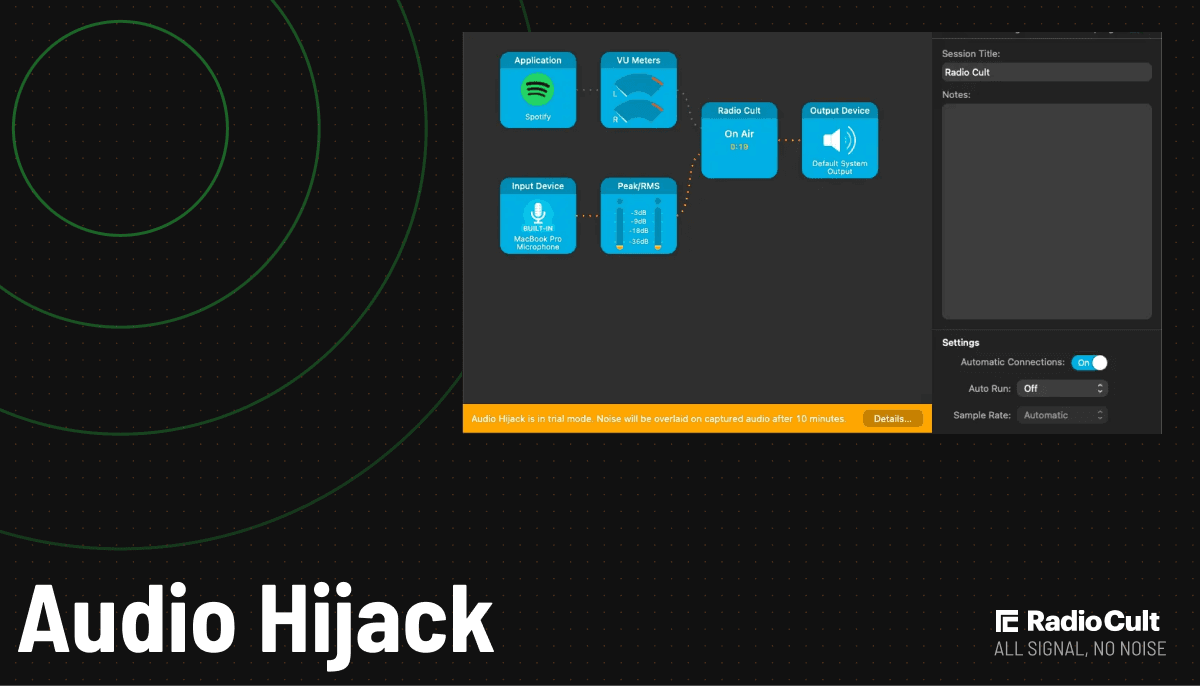
Start from the "Internet Radio" session template, then point the Broadcast block at your RadioCult server over Icecast 2.
You need your Address, Port, Mountpoint, Username, and Password from the RadioCult dashboard.
- Click Run to go live and Stop to end the broadcast.
Audio Hijack turns your Mac into a live broadcast studio, capturing audio from any app or input and streaming it to your internet radio station. This guide shows you how to live stream with Audio Hijack by connecting it to your RadioCult streaming server over Icecast 2.
What is Audio Hijack?
Audio Hijack is a professional-grade audio recording tool for macOS, made by Rogue Amoeba, with live broadcasting built in. Its block-based sessions let you capture audio from any app or input, process it, and stream it out over Icecast, which makes it a flexible choice for talk shows and live sets on a Mac without running your own server. It requires a paid license for most uses.
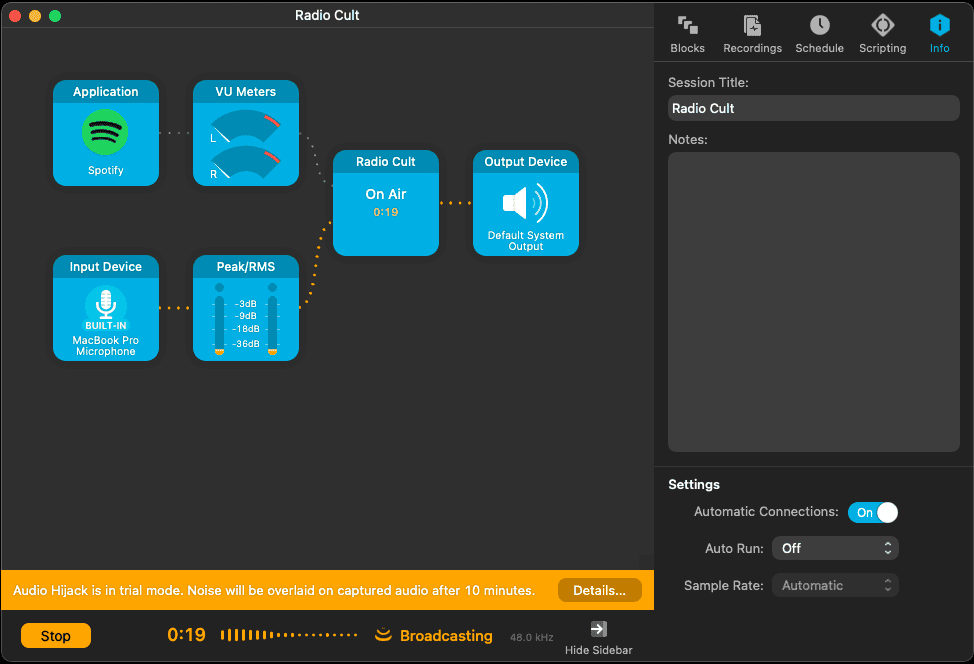
Connecting Audio Hijack to your RadioCult station
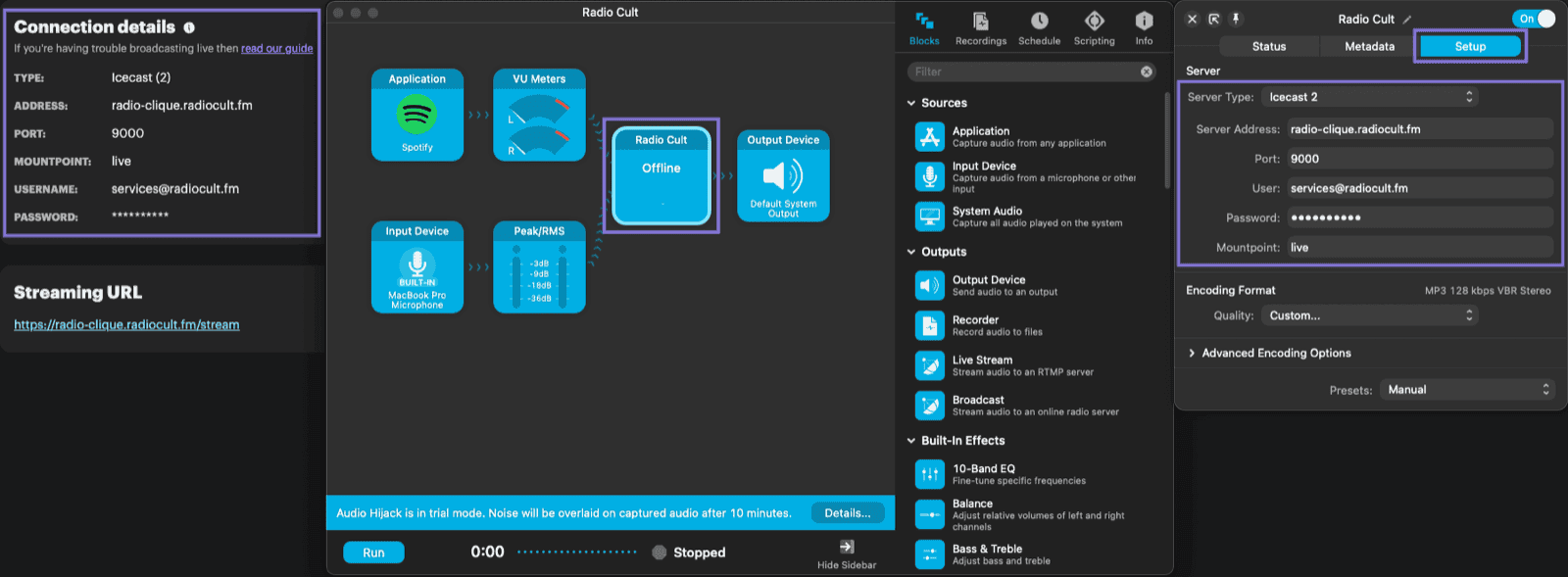
Your username is the same as your RadioCult account login (your email address), and your password is a unique streaming password shown in the Connection details panel. This streaming password is separate from your account login password.
First, log in to RadioCult and stay on the Dashboard so you can copy the values from the Connection details panel. Then set up a broadcast session in Audio Hijack:
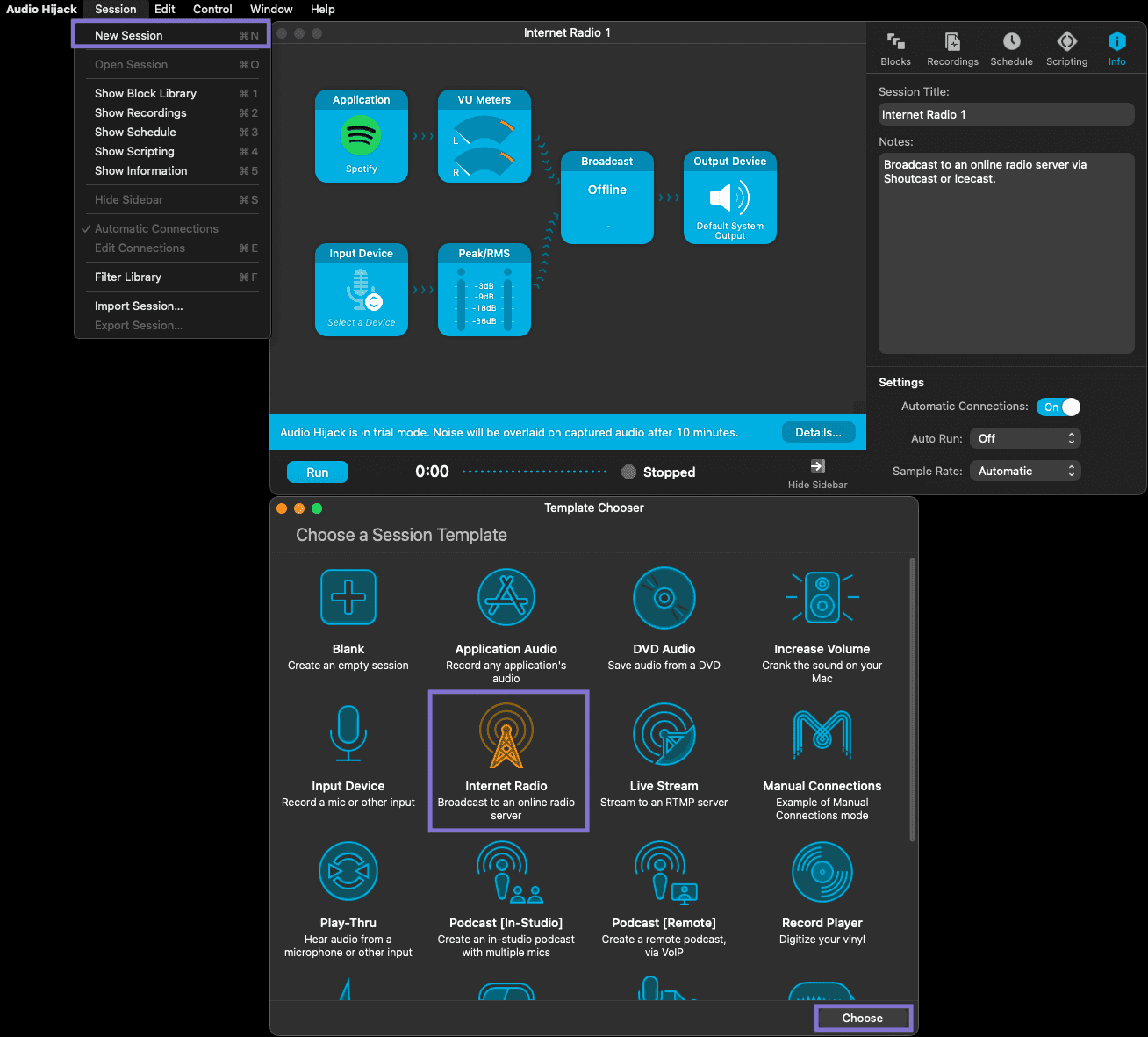
- Open Audio Hijack, click Session in the macOS menu bar, and choose New Session.
- In the Template Chooser, select Internet Radio and click Choose.
- Click the Broadcast tile, then click Setup in the top-right of the Options window.
- Choose Icecast 2 from the Server Type dropdown.
- Enter your RadioCult connection details into the matching Audio Hijack fields:
- Server Address: your RadioCult Address
- Port: your Port
- Mountpoint: your Mountpoint
- User: your Username
- Password: your Password
Going live
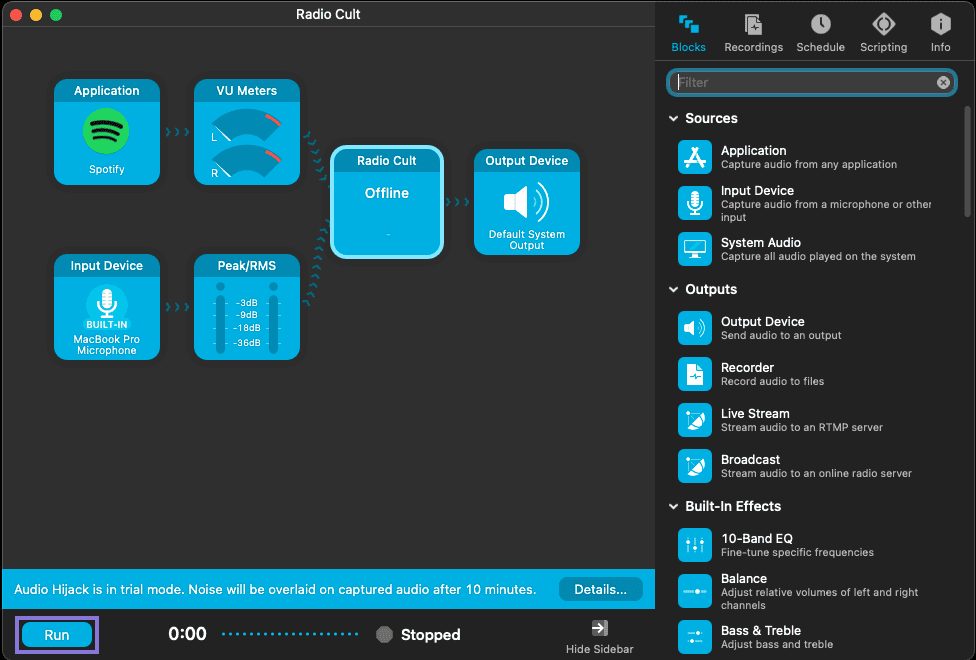
Click the Run button to start broadcasting to your RadioCult station. When your show is finished, click Stop.
That is all it takes to broadcast from a Mac with Audio Hijack. To keep your station on air between live shows, set up scheduling and automation, or see everything included on RadioCult's plans.