Key Takeaways
Internet radio is continuous real-time audio, so recording means capturing a live stream as it plays. Only record audio you have the rights to keep.
If you run the station, RadioCult has built-in recording. Toggle it on for any show and the finished broadcast is saved to your cloud archive automatically.
If you are a listener, you can still record. A stream ripper captures a stream straight from its URL, while Audacity or OBS record whatever is playing on your computer.
On phones, recording is more limited. Android screen recorders can capture internal audio, while iOS mostly restricts you to the microphone.
Internet radio is real-time audio. That means it never stops, it keeps on going forever, with new tracks being faded in and out all the time. But what if you want to listen back to a radio show, keep a copy for future playback, or save a broadcast you enjoyed as a listener?
Good news: it's very doable. How you go about it depends on which side of the stream you are on. If you run the station, the cleanest route is to have your platform record shows for you. If you are a listener, recording is not built into most listener apps, but you can still capture a stream using third-party tools. We'll cover both below.
One thing to get straight before we begin: only record audio you have the rights to. Recording your own shows for your archive is completely fine. Saving a stream as a listener for your own personal listen-back can be fine too, but redistributing or republishing someone else's copyrighted broadcast is not. Radio stations put countless hours into honing their craft, and that deserves respect, so record responsibly.
With that covered, let's get into it.
Recording your own station's shows with RadioCult
If you run your station on RadioCult, this is by far the easiest method. RadioCult has recording built in, sitting right alongside its broadcasting tools, so a station can capture any of its own shows and broadcasts without any extra software.
RadioCult is built around scheduling events. If you can use Google Calendar then you can start your own internet radio station.
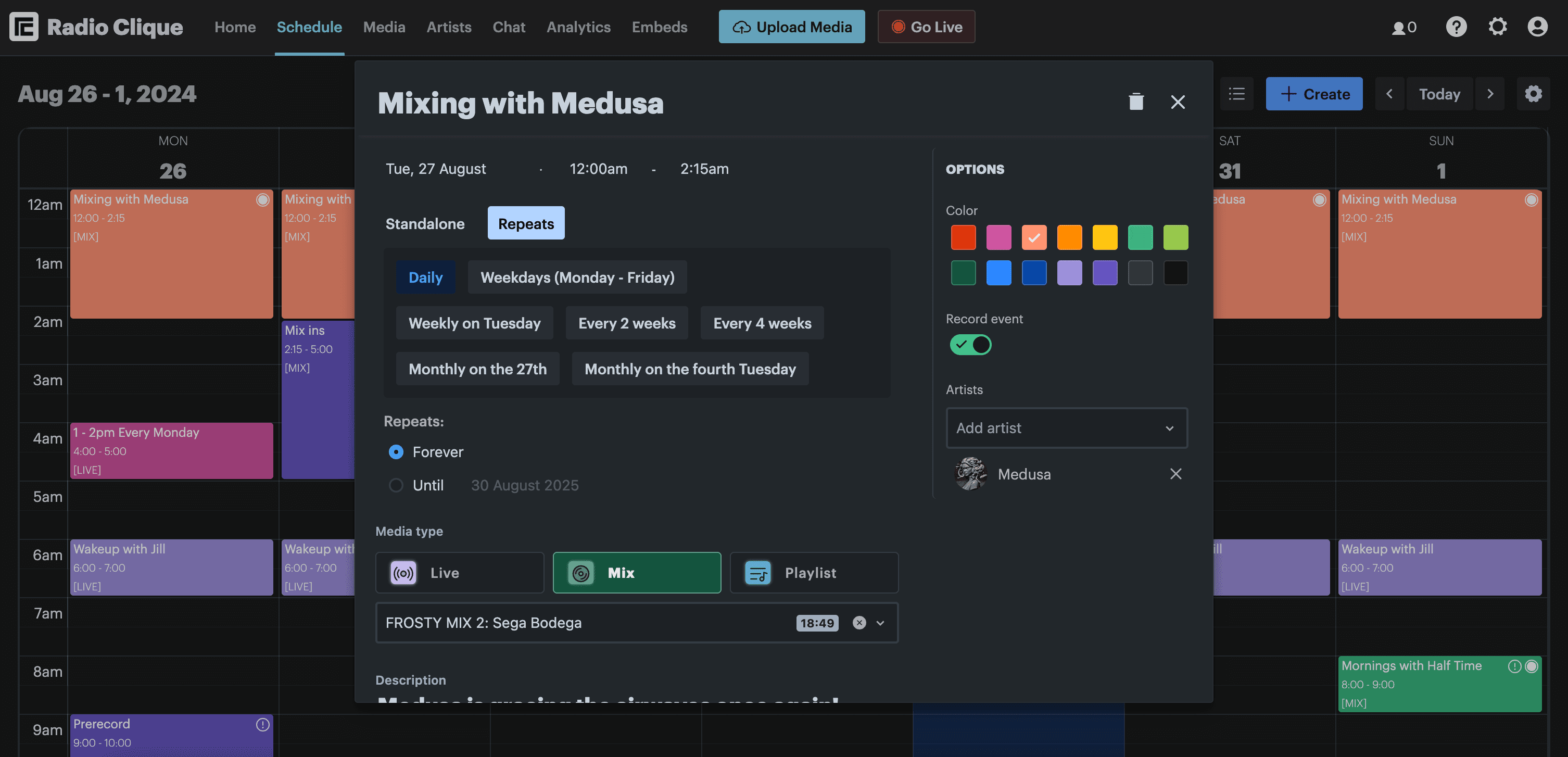
Every event you schedule has the ability to be recorded. You simply toggle record on (see the picture below) and we'll automatically record the event, whether it's a live show, a pre-recorded mix, or a curated playlist played out by the scheduler. Every event on your calendar is marked when it's set to be recorded, making it easy to check the right shows are covered with a quick glance.
 Once an event is finished, we upload the recording into our cloud and archive it for later use. You can access everything in the Recordings section of the Media view (see picture below).
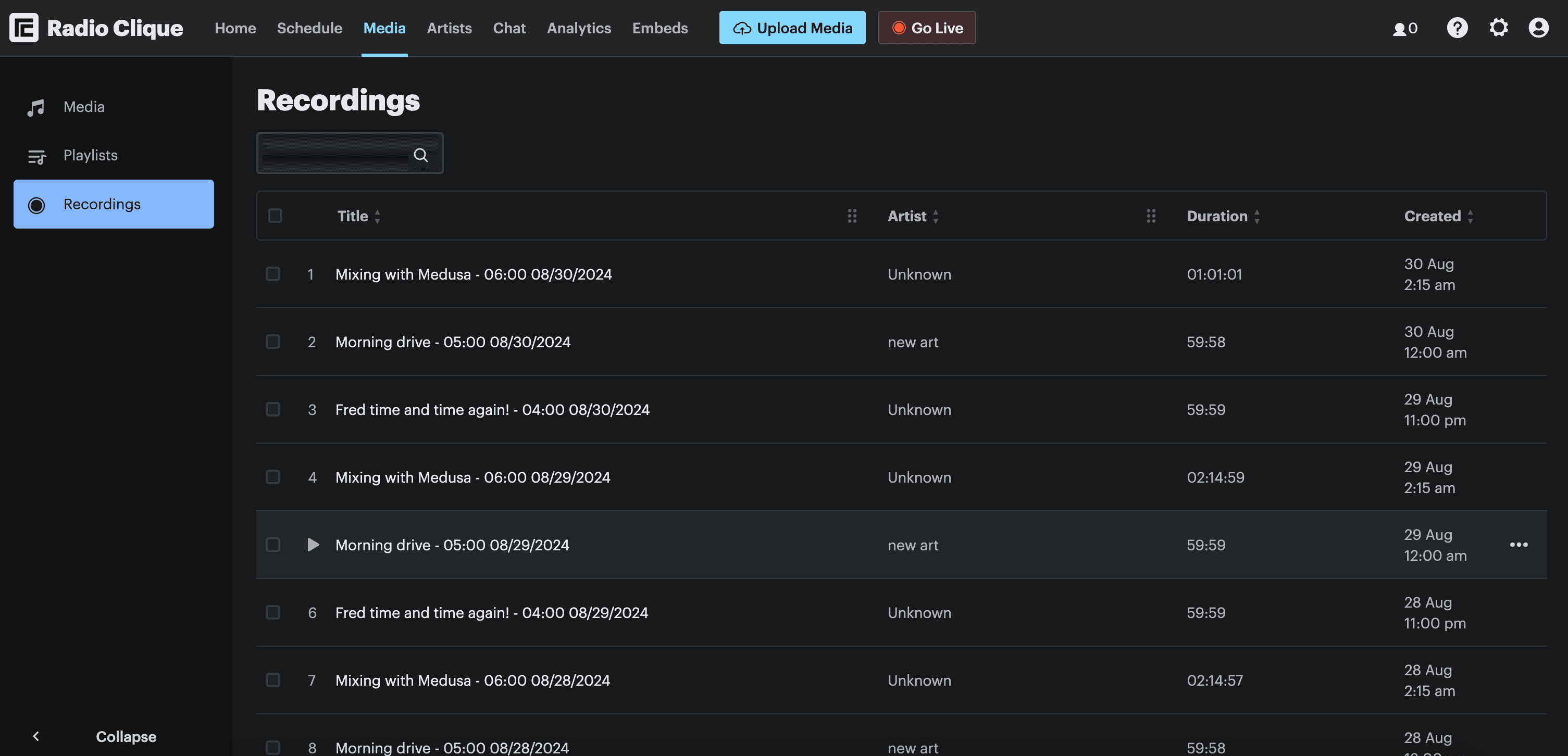 With your recordings you can archive them for regulatory reasons, upload them to Soundcloud and Mixcloud, download them to edit and share, or keep them for future playback on your station's stream.
Keeping an archive is not just housekeeping. On-demand and catch-up listening is now a real part of the audio day. For UK adults, live radio still leads with 66% of audio listening hours, but on-demand music (16%), podcasts (6%) and catch-up radio (3%) together make up about a quarter of the time people spend with audio, according to RAJAR's MIDAS Spring 2026 survey. A recorded show is exactly what lets a listener come back to something they missed.
RadioCult gives you more storage than other providers so you can record more events!
Recording your live broadcasts with BUTT
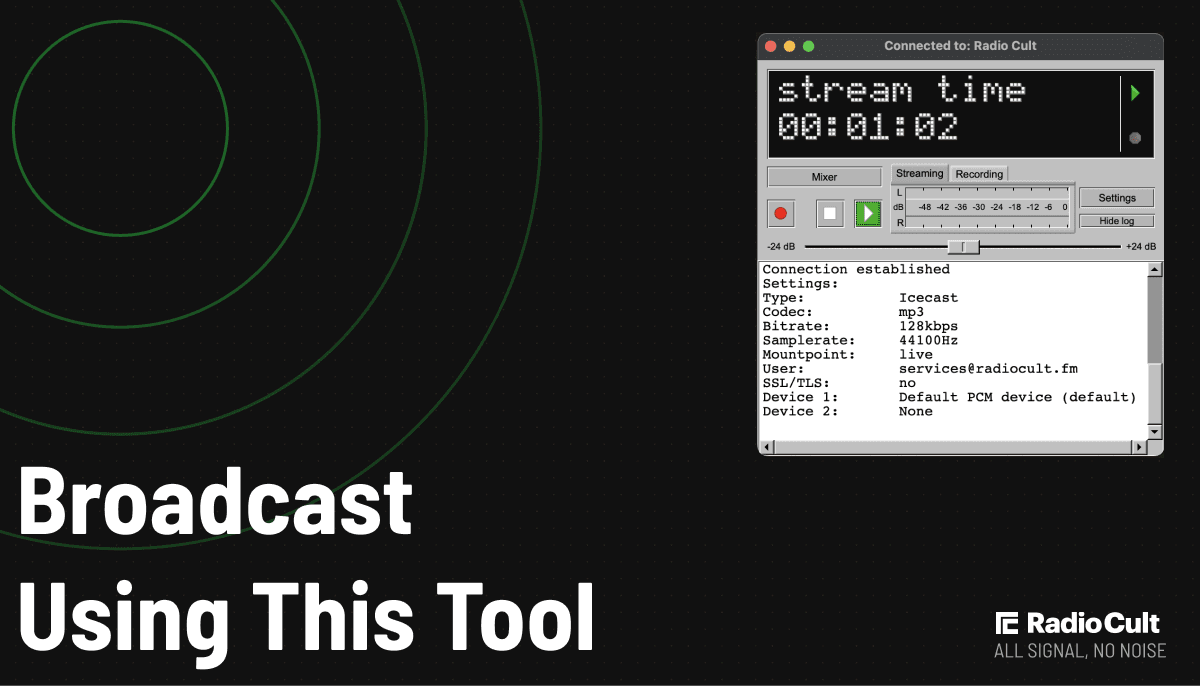
If you go on air live and want a local copy of exactly what you sent out, BUTT puts you firmly in control. BUTT (Broadcast Using This Tool) is a popular free tool for streaming live audio, and it doubles as a recorder.
BUTT can be configured to automatically start recording whenever you connect to your RadioCult stream, and to stop when you disconnect. Even better, you can set it to name files with the current date, making them easy to find later.
To set this up:
-
Open BUTT
-
Click on the "Settings" button to open the settings view
-
Navigate to the "Record" settings tab
-
Configure the automatic naming of your recordings, the folder they save to, and when you want BUTT to start and stop recording.
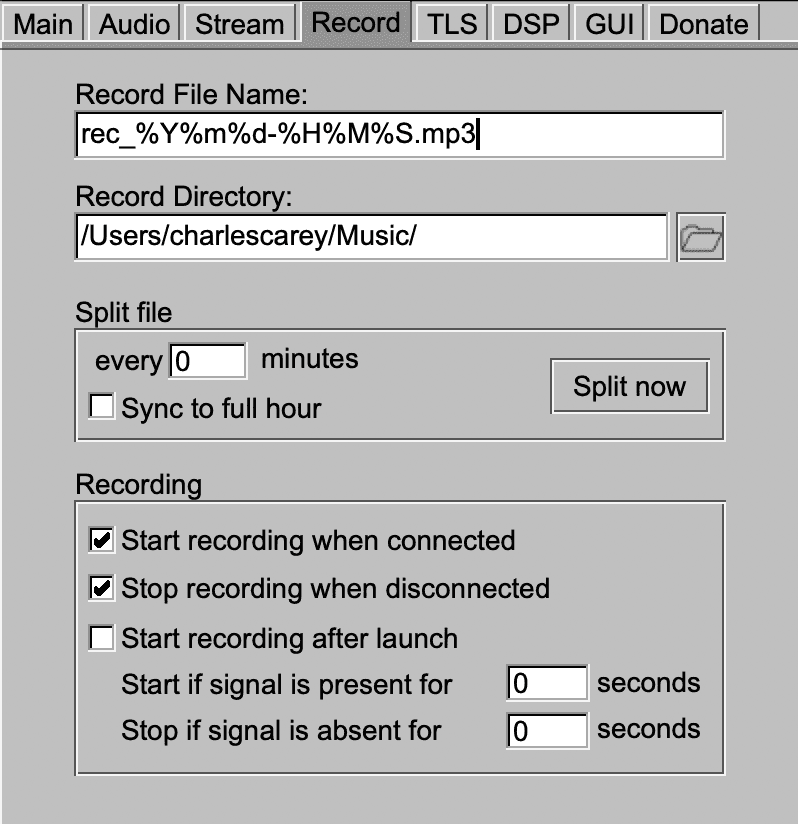 There are two things to keep in mind with this approach. First, it only captures what you are broadcasting live, because BUTT is the tool pushing audio from your setup into RadioCult's cloud. It has no way to record pre-recorded mixes or playlists that our system automates and plays at the scheduled time without you being connected. Second, it takes more setup than the built-in recording, and this is compounded if you have hosts going live from many locations, since each of them has to configure recording in their own copy of BUTT.
The upside is full control over when recording starts and stops. That can matter if a host tends to go live a little early or run a little late, as they can be sure to capture the whole show.
How listeners can record an internet radio stream
Recording is not a feature of the RadioCult listener app, and the same is true of most listener apps. That does not mean you are stuck though. As a listener you can still record a stream you have the right to keep using third-party tools, and these work with almost any station, not just RadioCult. Here are the main options in 2026.
Stream rippers: record straight from the stream URL
A stream ripper connects to a station's stream address and records it directly, which gives the cleanest result because it never leaves your computer's speakers. Many can also read the stream's metadata to split each track into its own file, remove ads, and run on a schedule so you can record overnight.
- streamWriter is a long-running free option for Windows that records internet radio and splits tracks automatically.
- StreamWriter Studio is a native macOS app that records a stream in the background around the clock and saves each track as a clean file.
- Audials One is a paid Windows tool that can record many stations at once, adjust bitrate and quality, and schedule recordings.
This is the most hands-off route if you want to capture a lot of audio without babysitting it.
Audacity: capture whatever is playing on your computer
Audacity is a free, open-source audio editor for Windows, macOS and Linux, and it can record the sound your computer is playing. The current stable release is the 3.x line, while Audacity 4.0, a big redesign built on a new Qt interface, is in public beta as of mid 2026, so it's worth sticking with the stable version for reliable recording.
The trick is loopback capture, which routes your system audio back into Audacity instead of using a microphone:
- On Windows, set the Audio Host to "Windows WASAPI", then choose the recording device that ends in "(loopback)". This captures the stream digitally with no quality loss.
- On macOS, Audacity can't capture system audio on its own, so install a free virtual audio device such as BlackHole, route your output through it, and select it as Audacity's input.
- Press Record, then play the stream. Note that loopback only records while audio is actually playing, so start the stream first.
Once captured, you can trim, clean up, and export the recording to MP3 or WAV straight from Audacity.
OBS Studio: record desktop or application audio
OBS Studio is free and cross-platform, and while it's best known for video, it records audio just as happily. Add an audio output capture (or, on Windows, an application audio capture pointed at your browser or player), press Start Recording, and it saves an audio-and-video file you can keep the sound from. It's a solid choice if you already have OBS installed for streaming.
Recording on a phone
Phones are the trickiest place to record a stream, because both mobile systems restrict access to internal audio.
- Android: a screen recorder such as AZ Screen Recorder can capture internal audio on most modern devices. Start the recorder, set the audio source to internal or media sound, then play the stream.
- iOS: Apple blocks apps from capturing another app's audio, so the built-in screen recorder usually can't grab a stream directly. The practical fallback is to play the stream out loud and record it through the microphone, which works but sounds noticeably rougher.
For anything where quality matters, recording on a computer with one of the methods above will give you a far better result than a phone.
Want to streamline your station's recording workflow? Try RadioCult with a 7-day free trial.