Key Takeaways
A new Live connections report shows every live encoder connection to your station: who connected, from where, when, and for how long.
No more guessing who was on air. If a host asks "was I connected last night?" or you need to know who was broadcasting during a show, the answer is in your dashboard.
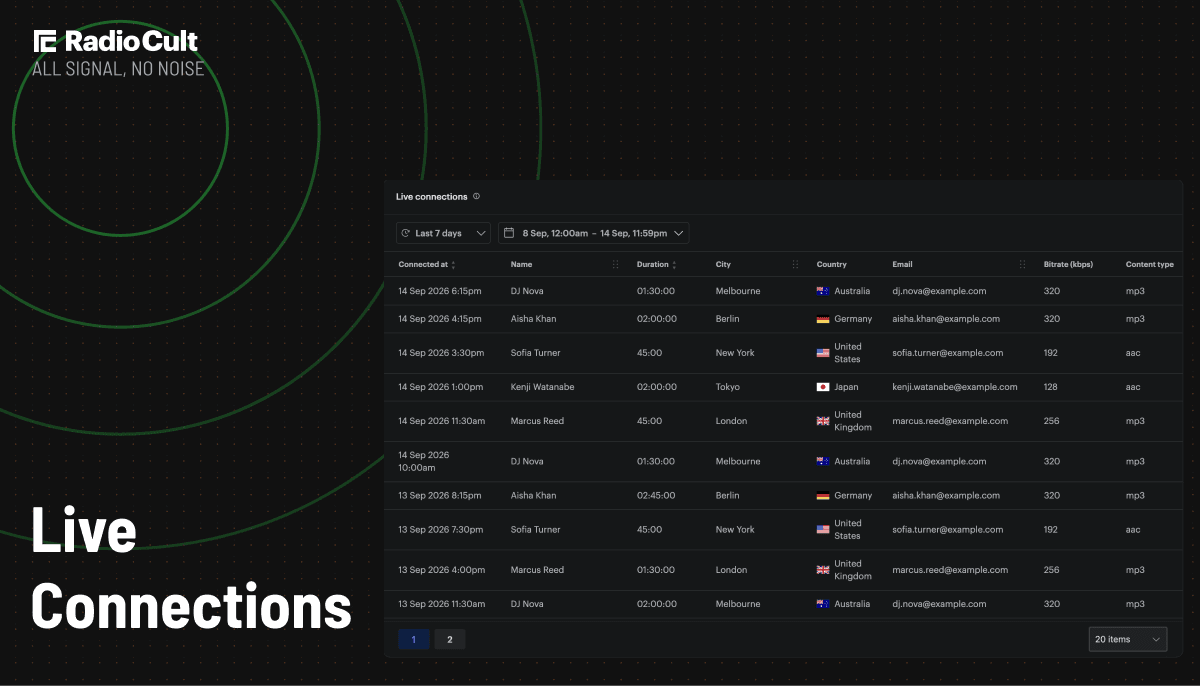
Each connection shows the host's name and email, the country and city they connected from, and the connection's bitrate, format and sample rate.
Filter by a preset range like the last 7 days, or pick an exact start and end time down to the minute.
Because each host connects with their own login, every connection ties back to a real person, so the more of your team you give their own seat, the more useful the report becomes.
"Who was actually on air?"
Running a station with more than one host means people are connecting from all over, at all hours, often with their own gear. When something looks off, a show that started late, a stream that dropped, a slot you're not sure anyone covered, the first question is always the same: who was actually connected, and when?
Until now, answering that meant asking around or getting in touch with us. There was nowhere in your dashboard to simply look it up.
Introducing the live connections report
There is now. Live connections is a new report in your RadioCult dashboard that lists every live encoder connection to your station, newest first. Every time someone goes live, it's recorded, so you have a complete history of who has been broadcasting.
You'll find it under Reports in the dashboard.
What each connection tells you
Every entry in the report gives you the full picture of a single live session:
- Who connected, by name and email, so you know exactly which host it was.
- Where they connected from, shown as the country and city.
- When they connected and for how long, with the connect time and the session's duration.
- The connection details, the bitrate, format and sample rate, which is handy when you're helping a host get their encoder set up correctly.
Find exactly the session you're looking for
The report is fully filterable by date and time. Choose a quick preset like the last 7 days or last 2 weeks, or set a custom range with exact start and end times down to the minute. That makes it easy to zero in on a single show or pin down what happened at a specific moment.
Why it matters for multi-host stations
If your station has a roster of hosts, this is where it earns its keep. Because RadioCult issues each user their own streaming login, every connection in the report resolves to a specific person, not an anonymous stream. That gives you a clear, accountable record of who has actually been on air.
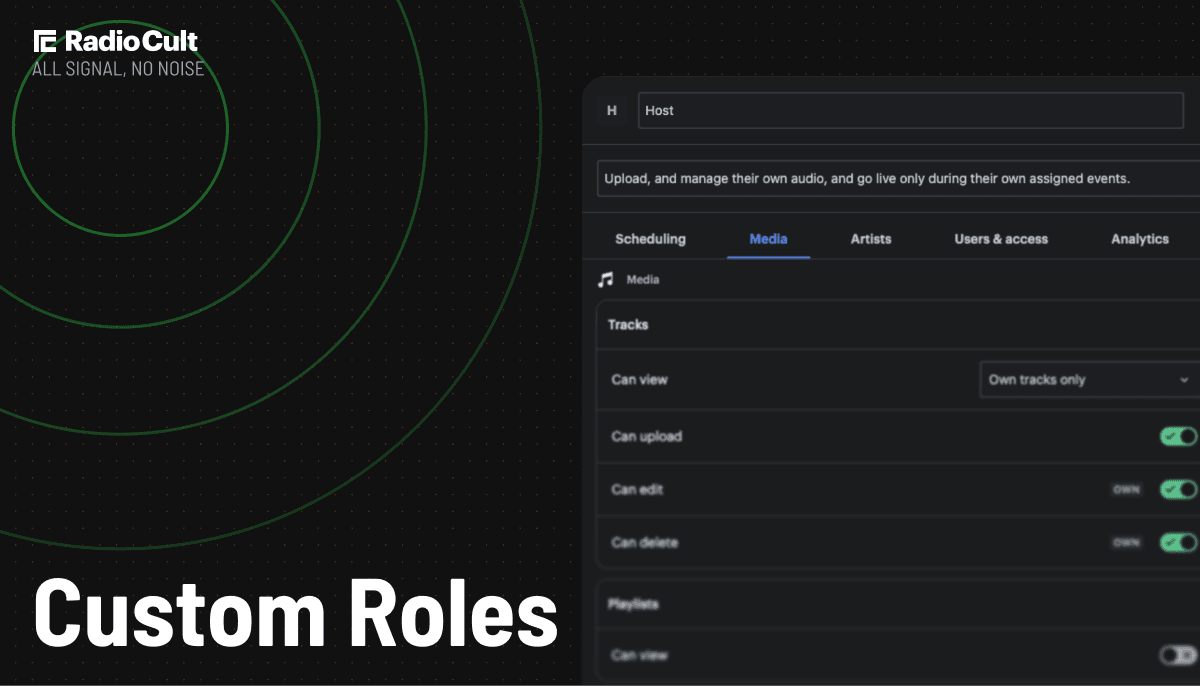
You already control who is allowed to broadcast live, and when, through roles: built-in roles cover the common setups, and custom roles let you switch individual permissions on or off per person. Live connections is the other half of that picture, it shows what actually happened. That's especially useful when several people hold broader-permission roles, or when you just want to confirm whether someone connected for their slot.
Stations that share a single login across everyone will still see connections, but they'll all look the same. Give each host their own seat and the report becomes a genuine who's-who of your airtime.
How to find it
Head to the Reports section of your RadioCult dashboard and open Live connections. The most recent connections are at the top, and you can filter to whatever period you need.
Frequently asked questions
Where do I find the live connections report?
In the Reports section of your dashboard, under Live connections.
Who appears in the report?
Anyone who connects a live encoder to your station using their RadioCult login. Each entry shows that host's name, email and location.
What if my hosts all share one login?
The report will still record every connection, but they'll all show the same shared user. To see who's really connecting, give each host their own seat, then every session ties back to the right person.
Can I see how long someone was on air?
Yes. Each connection shows both the connect time and the duration of the session.
Which plans include this?
The live connections report is available on Growth plans and above.
Want to see who's been broadcasting to your station? Head to the Reports section of your dashboard and open Live connections, your full connection history is waiting.
See who's been broadcasting to your station today.